
Laptop Posture: How to Sit With a Laptop Without Neck Pain
By Mark Fulton · · 5 min read
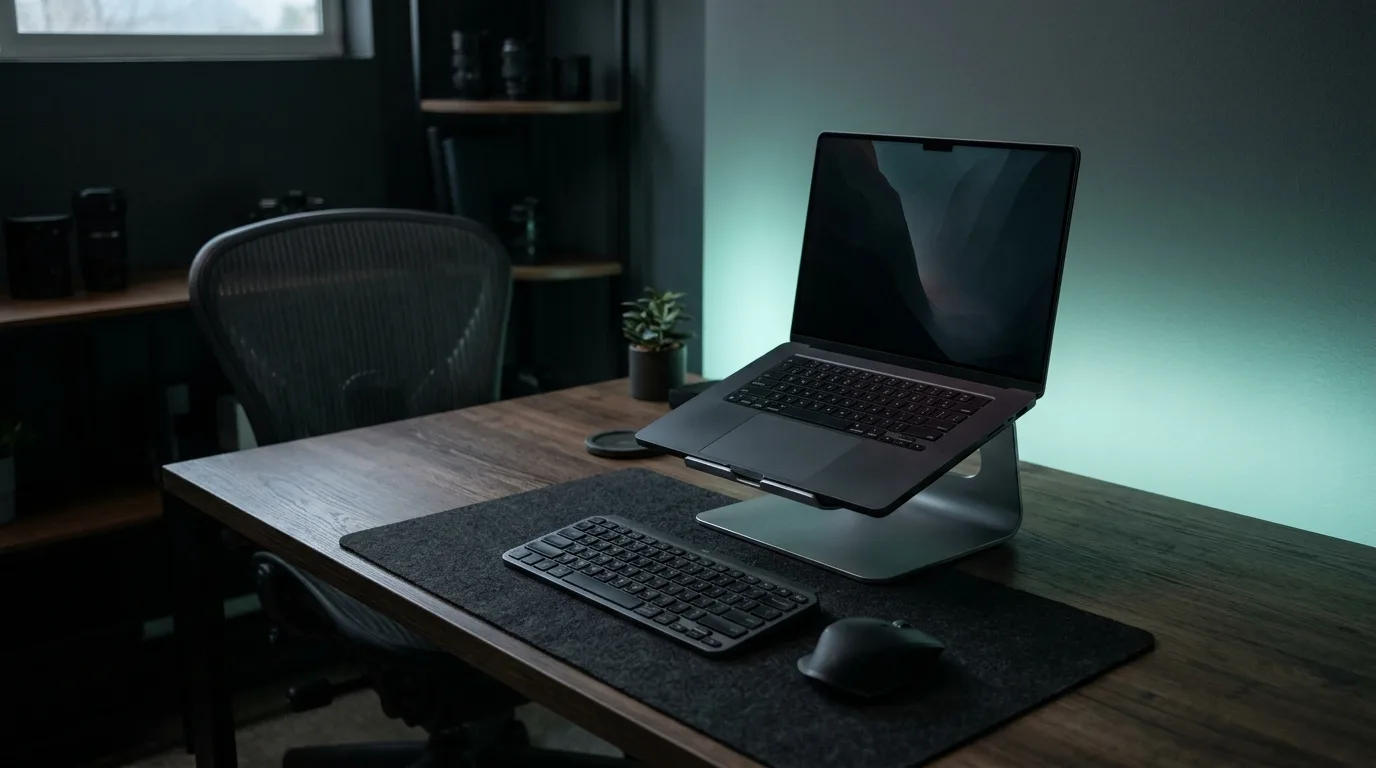
To sit well with a laptop, separate the screen from the keyboard. Raise the laptop so the top line of the screen is at or slightly below eye level, then type on a separate keyboard and mouse at elbow height. Sit back in your chair with your back supported. Without those changes a laptop forces a trade-off: either the screen is low and your head drops forward, or the keyboard is high and your shoulders hunch. This guide covers the setup, cheap alternatives, and what to do when you're working from a sofa or bed.
Why laptops are hard on posture
A desktop computer lets you put the screen and the keyboard where each needs to be. A laptop joins them. The screen ends up roughly at desk height, well below your eyes, so you look down. Looking down means your head tips forward, and to read small text you bring it closer still.
The US Occupational Safety and Health Administration's computer workstation guidance describes the position you want: the monitor directly in front of you, at least 20 inches away, with the top line of the screen at or below eye level (OSHA, Monitors). For your arms it describes shoulders relaxed, elbows close to the body and bent between 90 and 120 degrees, with hands, wrists and forearms straight and roughly parallel to the floor (OSHA, Positions).
A laptop on a desk can satisfy the arm guidance or the screen guidance, not both. That's the whole problem, and it's why the fix is to split the two.
The laptop setup that works
1. Raise the screen
Put the laptop on a stand, a riser or a stack of sturdy books until the top line of the screen sits at or a little below your eye level when you sit back in your chair. Look straight ahead: your eyes should land near the top of the screen, not the middle of the keyboard.
Height matters more than the stand you use. A ream of printer paper does the job. If you wear progressive or bifocal lenses and find yourself tipping your head back to read, lower the screen slightly until you can read comfortably with your head level.
2. Add a keyboard and a mouse
With the screen raised, the built-in keyboard is too high to type on comfortably. Any external keyboard and mouse will do. Place them so your elbows stay close to your sides and your forearms are roughly level, per the OSHA neutral-posture guidance above.
3. Set the distance
Push the raised laptop back to at least about an arm's length (OSHA's figure is at least 20 inches). If text is now too small, increase the display scaling or the zoom level in your browser. Fix text size on the screen, not by moving your head toward it.
4. Set your chair
Sit with your hips all the way back so the backrest supports your lower back. OSHA's chair guidance calls for a backrest that follows the natural curve of your spine with adequate lumbar support, a seat that lets your feet rest flat on the floor or a footrest, and armrests (if you have them) that let your shoulders relax (OSHA, Chairs). A rolled towel behind your lower back helps on a chair with no lumbar support.
5. Check it in 10 seconds
Once you've set up, sit the way you normally work and run a posture check with the laptop's webcam. Raising the laptop has a side benefit here: the camera ends up near eye level, which is the best angle for a webcam posture check. Sit up for three seconds to set your baseline, then work for a couple of minutes. If you see "Head drifting forward" or "Leaning toward the screen" come up within the first minute, your screen is still too low or too far away, or the text is too small.
Laptop posture without a stand
If you're travelling or haven't bought a stand yet:
- Stack books, a box, or a backpack under the laptop and use an external keyboard if you have one.
- No keyboard with you? Alternate. Raise the laptop for reading, calls and video, and lower it for long typing sessions. Raised for reading is where you spend most of your head-forward time anyway.
- Increase the text size so you don't lean in.
- Take more breaks. Without a good setup, moving often matters more. OSHA recommends changing position frequently and standing up and walking around for a few minutes periodically (OSHA, Positions).
Laptop posture on a sofa or in bed
Working from a sofa or bed is the hardest setup for posture, because there's nothing to keep your back supported and the laptop usually ends up on your lap, far below your eyes.
If you do it:
- Sit up against the back of the sofa or the headboard, with a cushion behind your lower back, rather than slumping down.
- Put a firm cushion or a lap desk under the laptop to bring the screen up.
- Keep sessions short and switch to a table for anything longer than a quick task.
- Avoid lying on your stomach propped on your elbows, which bends your neck back to see the screen.
Signs your laptop setup isn't working
- Your neck or upper back aches by the end of the day.
- You notice your chin pushed forward toward the screen.
- Your shoulders creep up toward your ears while you type.
- You catch yourself perched on the front edge of the chair.
If you notice any of these, recheck screen height first. It's the most common cause. You can also run the forward head posture test to see where your head rests when you stand, compared with how it sits while you work.
A laptop posture checklist
- Top line of the screen at or slightly below eye level
- Screen at least an arm's length away (about 20 inches)
- External keyboard and mouse, elbows close to your sides
- Forearms roughly level, wrists straight
- Hips at the back of the chair, lower back supported
- Feet flat on the floor or a footrest
- Text large enough to read without leaning in
- A break to stand and move every so often
The sitting posture guide has the same checklist for any desk.
Keep the setup working
A good setup makes good posture easier, but it doesn't stop you drifting once you start concentrating. That's when a live reminder helps. PostureCheck runs in your browser, uses the laptop's own webcam, and taps you with a chime when you slouch for longer than your alert delay. Nothing is uploaded or recorded. It's free for two minutes a day; Pro watches all day.
If you have neck or back pain that lasts, or pain with numbness or tingling, see a doctor or physiotherapist. A better laptop setup helps with comfort; it doesn't treat injuries.